


Accessibility
Read Me Aloud helps children learn to read: your child reads a story aloud, and the app listens and follows along, word by word. We want as many children as possible to be able to use it, so the app supports the accessibility features of iPhone and iPad.

 Who it's for
Children learning to read, including struggling and dyslexic readers.
Children with low vision, as long as their sight is enough to read the story text, enlarged if needed.
Children who use Switch Control or a keyboard.
Parents who use VoiceOver or Voice Control to set things up: onboarding, sign-in, purchase and settings work with both.
 Reading help
OpenDyslexic
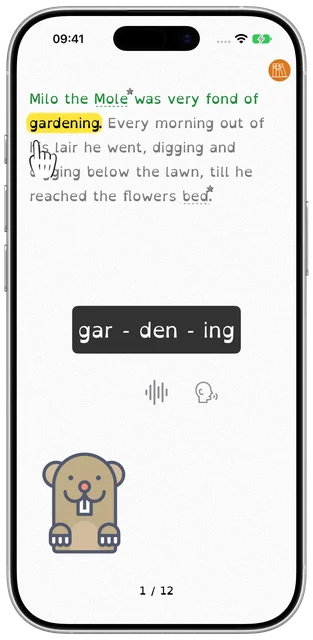
stories use the OpenDyslexic font by default. You can choose another one in Settings → Tales font.
Uppercase
Settings → Uppercase shows all text in capital letters, for children who don't know lowercase letters yet.
Syllables
tap a word to see it split into syllables.
Say the word
if your child is stuck on a word, the "Say the word" button reads it aloud.
Point next word
a finger points at the next word to read (Settings → Point next word).
Read the page again
the circular arrow lets your child read a page again.
 Larger Text
The app follows the text size you set in Settings → Accessibility → Display & Text Size → Larger Text. Story text grows up to twice its normal size. When a page no longer fits, the text scrolls by itself and keeps the sentence being read in view.
Larger Text
The app follows the text size you set in Settings → Accessibility → Display & Text Size → Larger Text. Story text grows up to twice its normal size. When a page no longer fits, the text scrolls by itself and keeps the sentence being read in view.
 Seeing clearly
Contrast
text and icons meet contrast guidelines. With Increase Contrast on, colors get stronger.
Not color alone
nothing relies on color only. Locked stories show a lock and finished stories a check mark. The words that have a picture are underlined. With Differentiate Without Color or Increase Contrast on, the words already read get a dotted underline too.
Dark Mode is supported throughout the app.
Bold Text, Button Shapes and Reduce Transparency are followed. With Smart Invert, pictures keep their colors.
 VoiceOver
Everything in the app works with VoiceOver: onboarding, sign-in, the parental gate, purchase, settings, the shelf, and moving through a story (pages, pictures and Close).
VoiceOver doesn't read the story text itself. Reading it is your child's task: hearing it would give the answer away, and the app would hear it as your child reading. So the app suits readers with low vision who can read the text on the screen, but not blind readers.
VoiceOver
Everything in the app works with VoiceOver: onboarding, sign-in, the parental gate, purchase, settings, the shelf, and moving through a story (pages, pictures and Close).
VoiceOver doesn't read the story text itself. Reading it is your child's task: hearing it would give the answer away, and the app would hear it as your child reading. So the app suits readers with low vision who can read the text on the screen, but not blind readers.
 Switch Control and keyboard
Every control can be reached with Switch Control and with Full Keyboard Access. With a hardware keyboard:
- ⌘→
- next page
- ⌘←
- previous page
- ⌘R
- read the page again
- Esc
- close the book
- ⌘,
- open Settings (from the shelf)
 Tell us
If something doesn't work for you or your child, please write to us. We read every message.